nutmegicing: FAQ
can i use your art for...
profile pictures & layouts (with credit)
wallpaper
art inspiration
edits
tracing
reposts
branding & business
crypto/nfts
rules concerning usage of commissions are different than these & can be found on my ko-fi!
what brushes & programs do u use?
i do the majority of my work in procreate & sometimes use photoshop to make tiny edits. 90% of the time im using a brush called "color pencil mw." I've made a few edits so that it fits my liking, but the default settings are great too!
art tutorials
do u sell ur art anywhere?
i'm selling prints of my work on inprnt! if there's something you'd like to get as a print let me know & i can make it happen!i also have some free wallpapers available on my ko-fi! i'd love to sell stickers & charms one day, but i don't have the means to do that atm :(
will u draw ____?
this is a case by case basis! i generally do not take requests for art and there's no guarantee of me drawing specific requests. but if you ask me to draw a character that i like the odds are a tiny bit higher lol. (also, something you'll never get from me is ship art and art of leaked characters/content, so please don't ask for those). if you really want me to draw something specific, just commission me :)
do u have a _____ account?
here are links to all my accounts! i do not use my instagram or tumblr too often!
how to make lineless art!
i've had a few people ask! so here is a tutorial! please don't mind the photo quality, i had to steal these from the procreate timelapse recording.(i almost exclusively make lineless art bc line art is the bane of my existence, i hated doing it so much i banned it from my art style)
1) sketch like normal
just make your usual sketch! keep in mind that you'll have to keep your sketch on for most of the time while you're rendering, so it can be useful to create different layers for unrelated elements! (i usually make ~2-3 different layers depending on my drawing: a layer for the body, a layer for clothing, and a layer for the background. here i used 2 layers, the pink is the body & the blue is clothing)
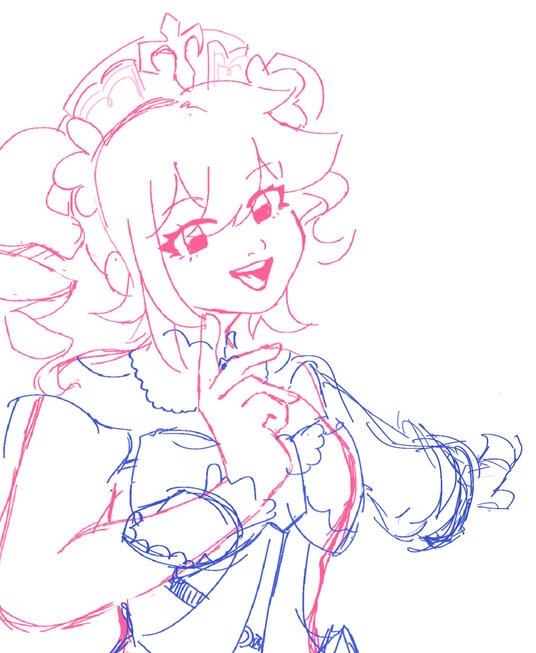
2) start blocking in flats!
on top of your sketch, you can start blocking flats in! i always work in this order: face, hair, clothing, & save the background for later. you can lower the layer opacity if you're having a hard time figuring out the right shape or if you're adding in details that need to go on top of shapes you've already created!
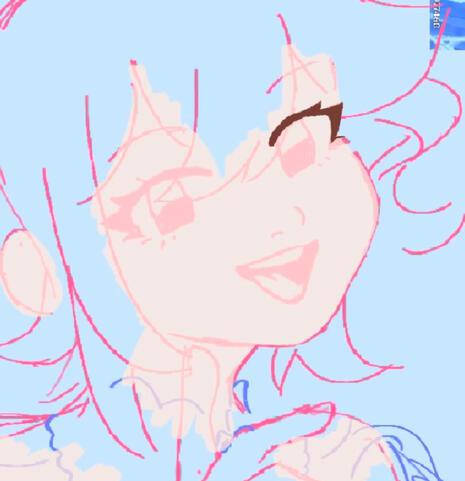
here, you can see me lowering the opacity to block in flats & add details that will go on top (the eyes)
3) some things to keep in mind as we render!
because we are working without line art, we need to find different ways to differentiate elements! the easiest way that i've found to do that is by making areas darker! here's an example of that! shading is really important with lineless art!you also might run into a few areas where you really feel like you need to use line art to indicate things properly! & that's ok! you can see a few spots where i did that in the finished version of this!
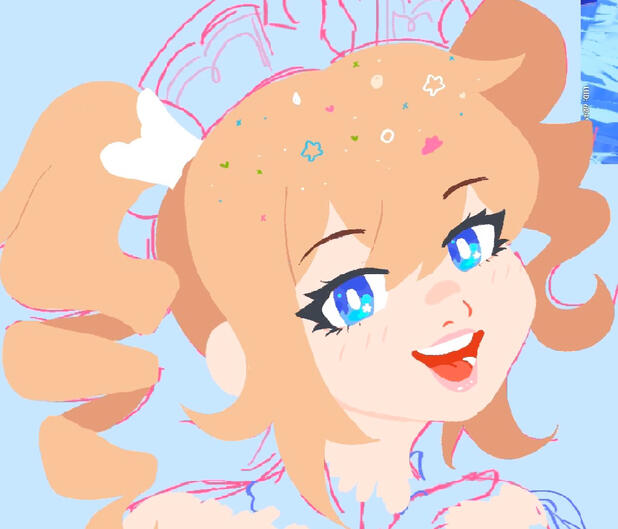
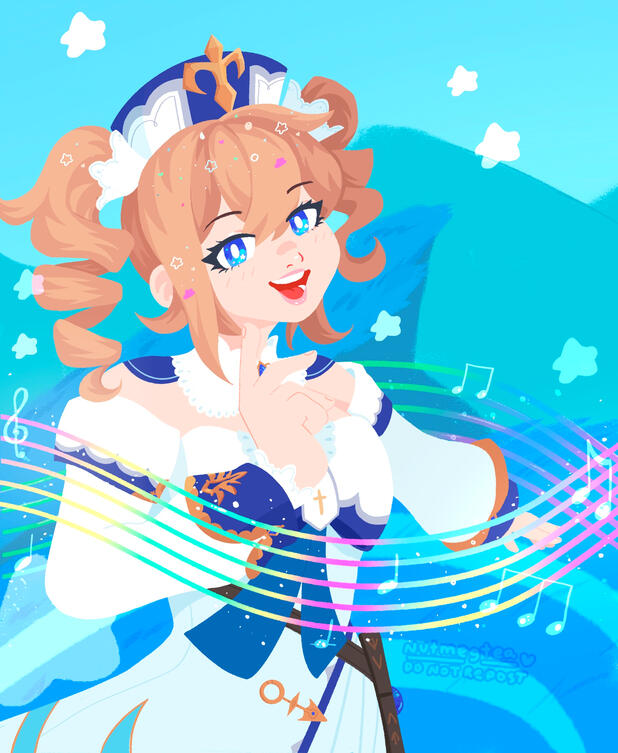
the way you render things is completely up to you! i do ask that you please ask for permission before borrowing from my style if that is what you're planning on doing.from here, you can finish rendering & do lighting! it's all very straightforward & repetitive. i won't be explaining how i do the rest, but here's the finished product for this drawing!
how to make pixel art in procreate!
i've had a few people ask! so here is a very rough but hopefully useful tutorial!
1) find a pixel brush!
the first thing u need to do is find a brush made for pixel art! there's a few free ones out there--here's a link to the one i use! ALSO because we're working in procreate and not a pixel art program, our pixel brush will not be perfect!
2) pick a canvas size
for canvas sizes, you can go with almost anything, but keep in mind that the smaller your canvas size, the bigger the pixels will appear. for reference, all of these pixel arts that i made are on a canvas size of 48x48!
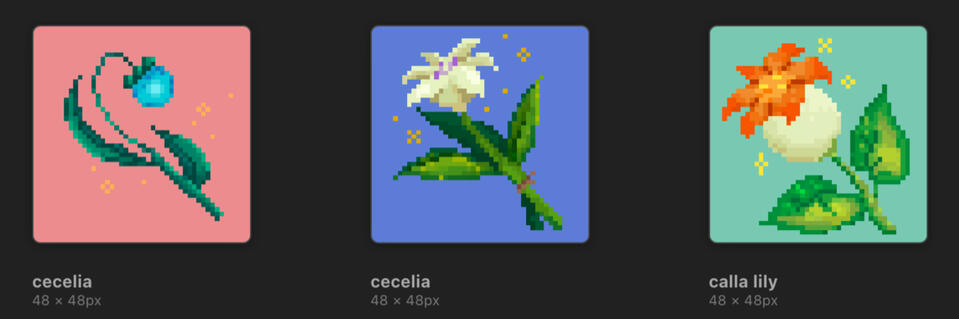
3) set up grids
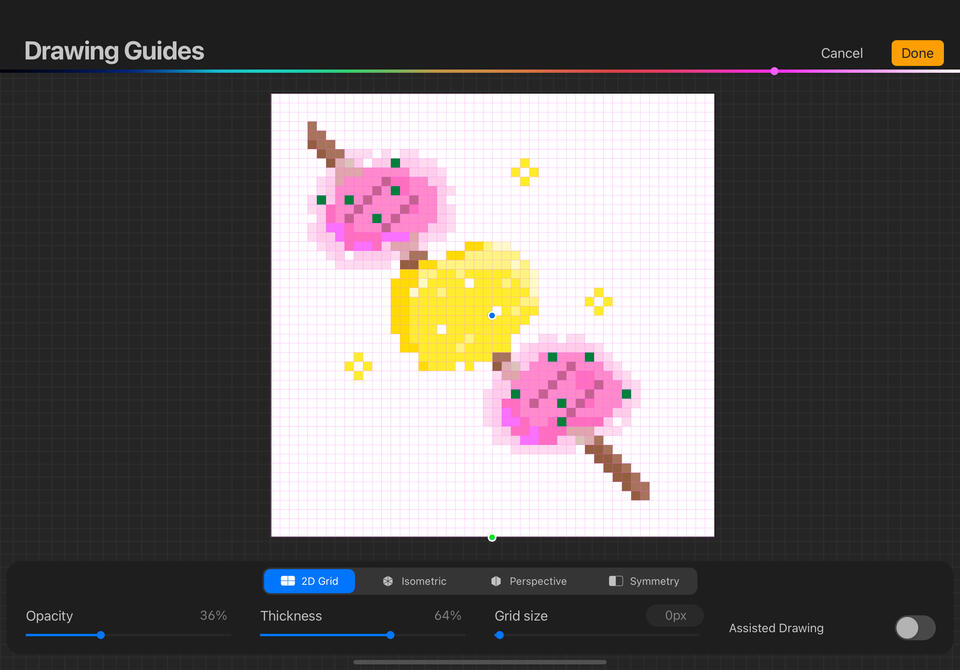
i usually dont do this, but it's a great option for visualizing where your pixels will go! you can set up "drawing guides" under the canvas option in the settings menu of your canvas! choose a grid guide & set the px size to 0! boom! square grid perfect for pixel art!you can also toggle on & off the assisted drawing feature as needed! it keeps the brush from glitching around when trying to make straight lines!that's all! the way you make pixel art is really up to you, so i won't be giving a tutorial on how i render at all! have fun!